Answer from your own information
Explain opening hours, services and how your business works. Keep your assistant’s knowledge current as your information changes.
Your AI assistant answers customers on WhatsApp, gathers the details and lets your team take over when the conversation needs a person.

Hi, can someone help with my existing booking?
Of course. What would you like to change?
I need a different day. Could a colleague check it?
Please share your name and booking reference so the team can help.
A familiar place to message
Customers contact your WhatsApp Business number.
Useful answers, day and night
Your assistant replies with your business information.
A person when it matters
Take over the chat with the context already there.
Use automation for the everyday questions. For a request that needs judgement or access to another system, collect the context and let your team handle it.
Try it with your businessStart with the work your customers ask about every day. Add the connections and handoff that fit your business.
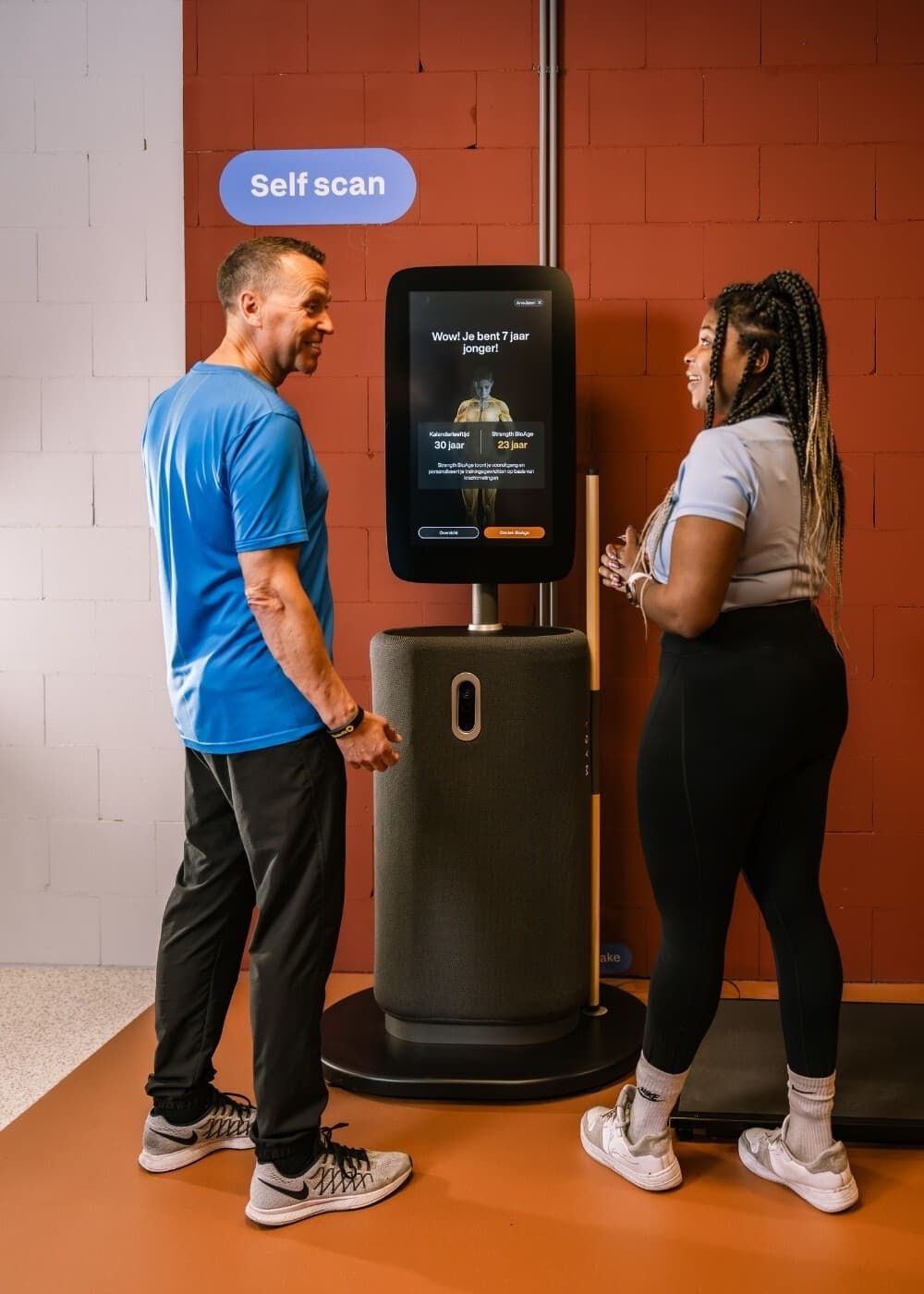
Circle Fit uses its AI phone assistant for phone enquiries, connected to its membership administration. The published story shows how company information and a custom connection help the assistant answer practical customer questions.
For your WhatsApp assistant, start with the same principle: the right information, a defined action and a clear route to your team.
Read the phone-service caseCheck the answers and the handoff before your customers use it. You can keep adjusting your assistant as your business changes.
Create your assistantAdd your website and business information. Choose which questions your assistant handles and when your team takes over.
Complete Meta’s connection flow, choose an eligible business number and add billing details at Meta where needed.
Try the answers and human handoff before inviting customers to message. Track and improve the conversations in your dashboard.
Every plan includes your messaging channels and standard calendar connections. Growth and Scale add CRM updates and your own webhooks.
Meta’s message charges are separate from your Voicelabs subscription.
See plans and billing€119/ month
Billed annually, excluding VATCheck access to your Meta business account and the number you want to use. Some accounts can keep the WhatsApp Business app through Meta’s coexistence flow.
See WhatsApp’s messaging rules ↗ and Meta’s current rates ↗.
Control access to conversations and decide what information your assistant needs. Review your privacy information before collecting customer details.